πŸ“š Welcome to MultiDoc Hub

Learn how to create and manage your documentation in minutes

1
Create Your Account

Start your documentation journey by creating a free account. The process is quick and simple!

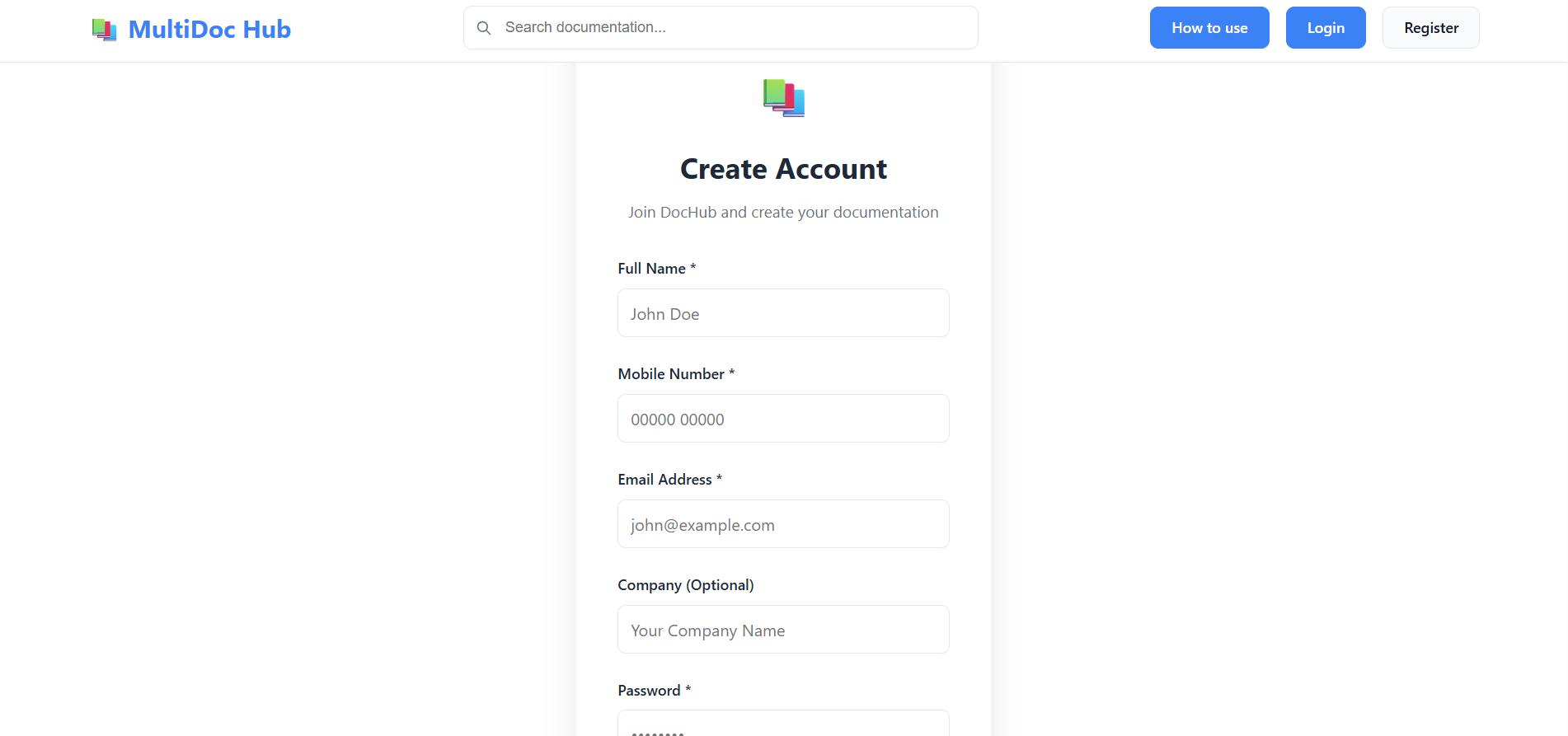
  • Click the "Register" button on the home page
  • Enter your Full Name (e.g., John Doe)
  • Enter your Email Address (e.g., john@company.com)
  • Enter a Company Name (optional but recommended)
  • Create a Strong Password (minimum 8 characters)
  • Confirm your password
  • Click "Create Account"
πŸ’‘ Tip:
Use a password that includes uppercase letters, numbers, and special characters for better security!
Registration Form
Registration Page Screenshot
2
Login & Explore Your Dashboard

After registration, you'll be automatically logged in. If you log out, simply login again with your credentials.

  • Click "Login" button
  • Enter your Email Address
  • Enter your Password
  • Check "Remember Me" to stay logged in (optional)
  • Click "Login"
βœ… Dashboard Overview:
Your dashboard shows:
β€’ Total Projects Created
β€’ Total Pages Written
β€’ Total Section Categories
β€’ Recent Pages You Wrote
β€’ Pending Comments to Review
πŸ“Š
Dashboard Stats
View all your documentation statistics at a glance
πŸ“
Project Management
Create and manage multiple documentation projects
πŸ“
Write Pages
Create rich, formatted documentation pages
πŸ’¬
Manage Comments
Review and approve reader comments
3
Create Your First Documentation Project

A project is a collection of related documentation. You can have multiple projects (e.g., API Docs, User Guide, etc.)

  • Go to Admin Panel (click "Admin" in top right)
  • Click "Projects" in the left menu
  • Click "+ New Project" button
  • Enter Project Name (e.g., "Laravel API Documentation")
  • Add a Description (what your project is about)
  • Choose a Brand Color (for visual identity)
  • Toggle "Public" to make it visible to everyone
  • Click "Create Project"
🎨 Project Tips:
β€’ Project Name: Short and descriptive (e.g., "React Docs", "API Guide")
β€’ Description: Explain what readers will learn
β€’ Color: Choose a color that represents your brand
β€’ Public: Make it public so anyone can read it
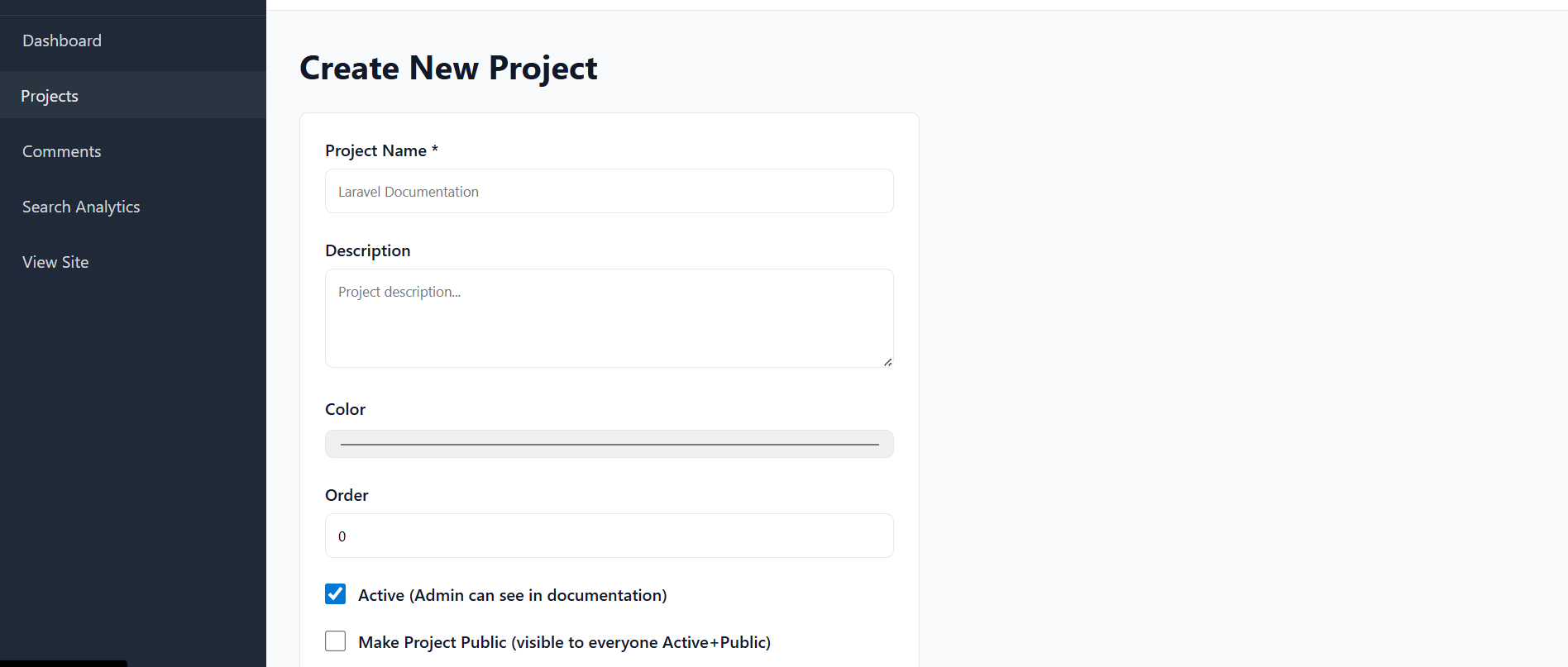
Create Project Form
Registration Page Screenshot
4
Organize with Sections

Sections are categories that organize your pages. Think of them as folders for your documentation.

  • Open your project from the Admin Panel
  • Click "Sections" tab
  • Click "+ New Section"
  • Enter Section Title (e.g., "Getting Started", "API Reference", "Troubleshooting")
  • Optionally set Parent Section (for nested categories)
  • Set Display Order (lower numbers appear first)
  • Click "Create Section"
βœ… Example Section Structure:
Your API Documentation might have:
πŸ“ Getting Started (Order: 1)
πŸ“ Installation Guide (Order: 2)
πŸ“ API Reference (Order: 3)
   β†’ Authentication (Order: 1)
   β†’ Endpoints (Order: 2)
πŸ“ Examples & Tutorials (Order: 4)
πŸ“š
Flat Structure
Create simple, flat categories for small projects
πŸ—οΈ
Nested Categories
Create sub-categories for complex documentation
πŸ”’
Order Control
Control the order sections appear in the sidebar
5
Write Documentation Pages

Pages are where your actual documentation content goes. You can format them with headings, images, code blocks, and more!

  • From your project, click "Pages" tab
  • Click "+ New Page"
  • Enter Page Title (e.g., "How to Install", "Authentication Methods")
  • Enter Page Summary (appears in search results)
  • Select a Section to organize the page
  • Write your Content in the editor
  • Use the Rich Editor to format text
  • Click "Create Page"
✍️ Editor Features:
πŸ“ Text Formatting: Bold, Italic, Underline
πŸ“Š Structure: Headings (H1-H6), Lists, Tables
πŸ–ΌοΈ Images: Upload images with drag & drop
πŸ’» Code: Code blocks with syntax highlighting
πŸ”— Links: Add links to other pages or websites
πŸ“‹ Quotes: Block quotes for important information
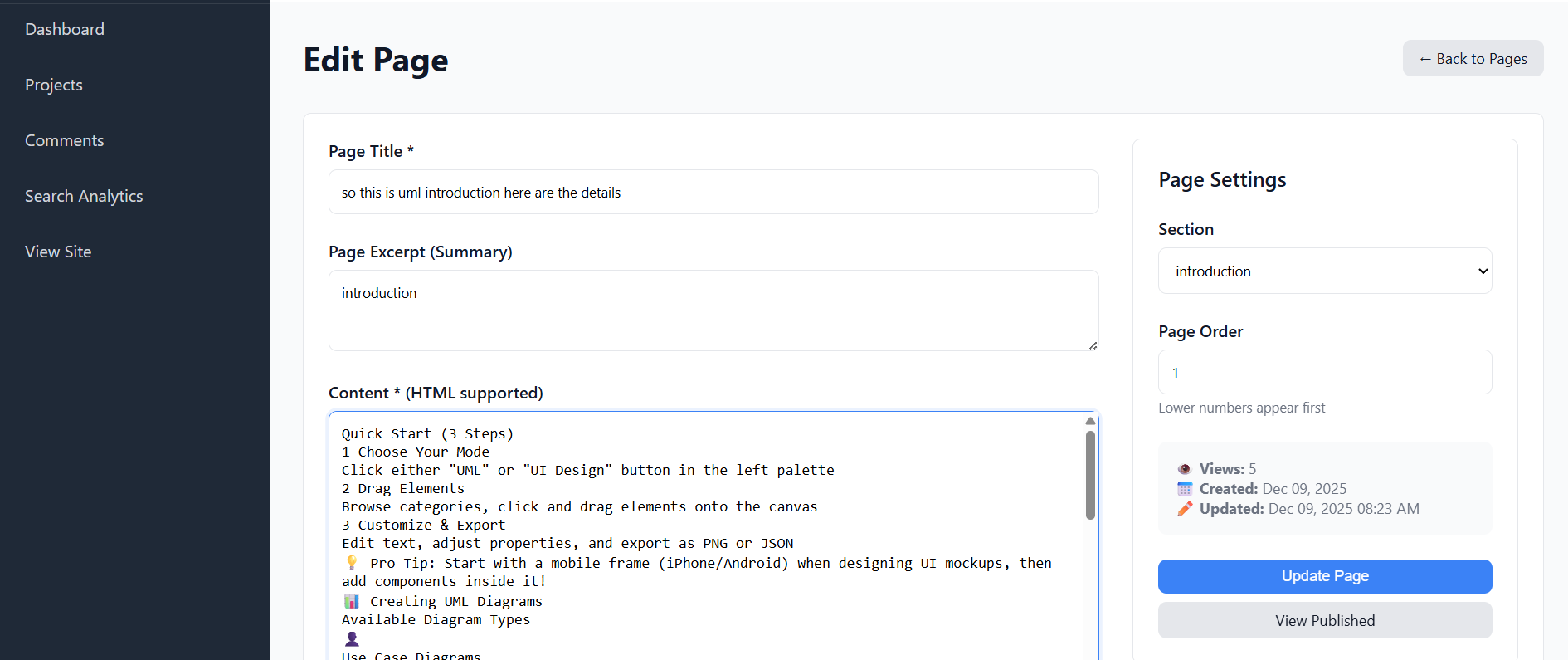
Content Editor
Registration Page Screenshot
βœ… Writing Tips:
β€’ Use headings to structure your content (H2 for main topics, H3 for subtopics)
β€’ Keep paragraphs short - easier to read
β€’ Add examples - use code blocks for code examples
β€’ Include images - visual guides help users understand
β€’ Write clearly - assume readers are new to the topic
6
Publish & Share Your Documentation

Your documentation is automatically published and visible to the world (if marked as public). You can share it with anyone!

  • Public Projects: Anyone can find and read your documentation
  • Sharable Links: Copy the project URL and share it
  • Search Indexing: Your content appears in MultiDoc Hub search
  • Comments: Readers can comment on your pages
  • View Stats: See how many people read each page
  • Private Projects: Keep documentation private (only you can see)
πŸ”—
Share Links
Share your project URL with team or public
πŸ”
Privacy Control
Make projects public or keep them private
πŸ“Š
View Analytics
See page views and user engagement
πŸ’¬
Manage Feedback
Review and approve reader comments
βœ… Sharing Your Documentation:
Public Project URL: https://multipledoc/uml-documentation/so-this-is-uml-introduction-here-are-the-details
Share on: Social media, Discord, Slack, Email
Embed: Link to your documentation from your website
Make SEO Friendly: Use descriptive titles and summaries
❓
Frequently Asked Questions
β–Ά How do I reset my password?
Click "Forgot Password" on the login page. Enter your email address, and we'll send you a 6-digit code. Enter the code, then create a new password. The code is valid for 15 minutes.
β–Ά Can I have multiple projects?
Yes! You can create unlimited projects. Each project is independent with its own pages, sections, and settings. Perfect for documenting multiple products or services.
β–Ά What file types can I upload for images?
You can upload JPEG, PNG, JPG, GIF, and WebP images. Maximum file size is 5MB per image. Simply drag and drop images into the editor!
β–Ά How do I make my project private?
When creating or editing a project, uncheck the "Make project public" option. Private projects are only visible to you. You can toggle this anytime.
β–Ά Can I delete pages or sections?
Yes! In your project's admin panel, you can delete any page or section. Deleting a section won't delete the pages in itβ€”they'll just become uncategorized.
β–Ά Do readers need an account to view documentation?
No! Public projects are visible to anyone without logging in. Readers can view all pages and even add comments without creating an account.
β–Ά How can I check how many people read my pages?
In your project admin panel, each page shows a view count. You can see which pages are most popular and which need more attention.
β–Ά What happens when someone comments on my page?
Comments are held for review. You can approve or reject them in your admin panel. Once approved, they appear on the public page for other readers to see.
β–Ά Is my documentation data safe?
Your data is encrypted and stored securely. Your password is never stored in plain text. You have full control over your projects and can delete them anytime.
β–Ά Can I export my documentation?
Currently, you can view your documentation in the admin panel. You can copy and paste content to save elsewhere. Contact support for bulk export options.

Ready to Create Your Documentation?

Start documenting today. It's free, easy, and takes just minutes to set up!

πŸ’‘
Pro Tips for Great Documentation
πŸ“–
Start Simple
Begin with basic pages. You can always add more structure later as your documentation grows.
✍️
Write for Beginners
Explain concepts clearly. Don't assume readers know technical details. Use simple language.
πŸ“Έ
Use Screenshots
Visual guides help users understand. Include step-by-step screenshots for complex processes.
πŸ”—
Link Related Pages
Help readers navigate. Link to related topics so they can learn more.
⚑
Keep It Updated
Review documentation regularly. Update pages when features change or new versions release.
πŸ“‹
Use Tables
Tables are great for comparing options or listing parameters. Makes information easy to scan.
πŸ†˜
Need Help?
We're Here to Help!
πŸ“§ Email Support: support@trulloy.com
πŸ’¬ Live Chat:+91 9875261060 Available on the website during business hours
πŸ“š Documentation: Check this guide for answers
πŸ› Report Issues: Found a bug? Let us know! services@trulloy.com